Search syntax: from keywords to OCR discoveries
← Previous · Guide home · Topic index · Download PDF · Next →
Begin with the ordinary keyword box; you can also type advanced field expressions directly into it. The annotated screenshot identifies both entry points.
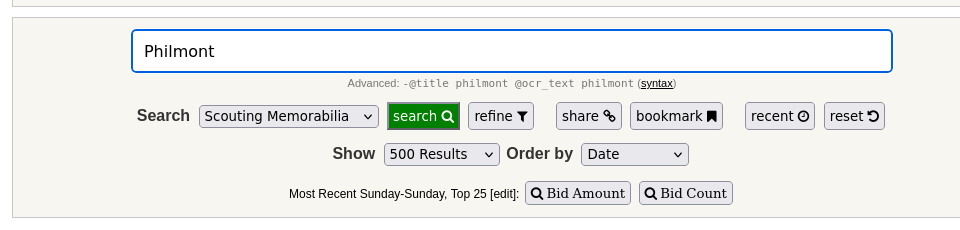
The actual member search field with Philmont entered, ready to submit. This is a screenshot of the live interface; no search was submitted to capture the example.
Continue below for step-by-step instructions and examples ↓
The blue-outlined input contains the query. The search button is immediately below it, alongside Refine and other shortcuts.
1. Begin with ordinary words
Type Philmont and press Enter (or choose search). This searches listing titles by default. A broader phrase such as Philmont patch can narrow your results, depending on the selected Search Mode. Compare the photographs rather than assuming every listing with those words is the same patch.
2. Use the main box for field-specific searches
The next examples show exactly what to type in the Search Sales box.
BSPi also accepts Sphinx extended query syntax directly in the main Search box. You do not have to open Refine to use the OCR field. The current application recognizes explicit @title and @ocr_text fields and automatically switches Search Mode to Boolean Expression when it sees a field expression.
| Enter in the main Search box | What it asks BSPi to search |
|---|---|
Philmont |
Ordinary title search using the current mode |
@title philmont |
The listing title field |
@ocr_text philmont |
Text extracted from listing photographs |
@(title,ocr_text) philmont |
The title and photograph text fields together |
-@title philmont @ocr_text philmont |
Look for Philmont in image text while excluding title matches for Philmont |
Search only listing titles
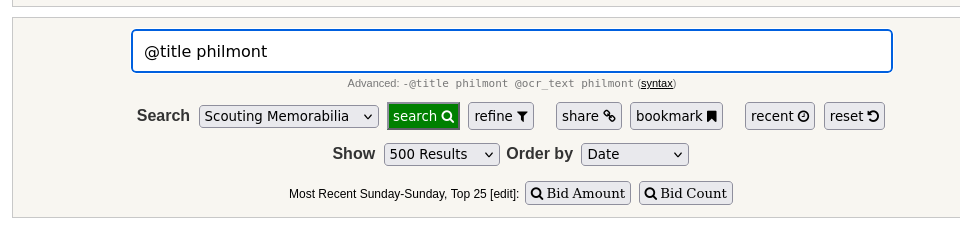
Enter @title philmont to specify the title field directly.
Search only text extracted from photographs
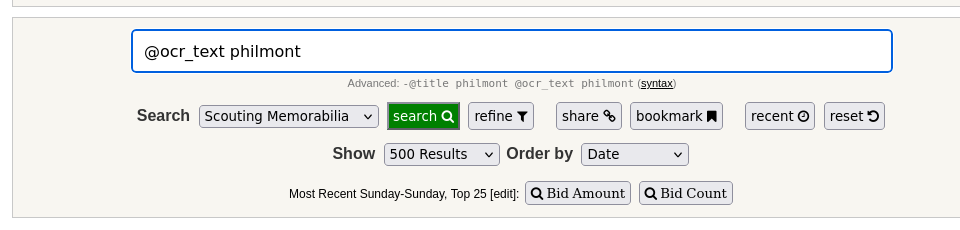
Enter @ocr_text philmont to search recognized image text, even when the seller's title does not mention the word.
Look for potentially overlooked listings
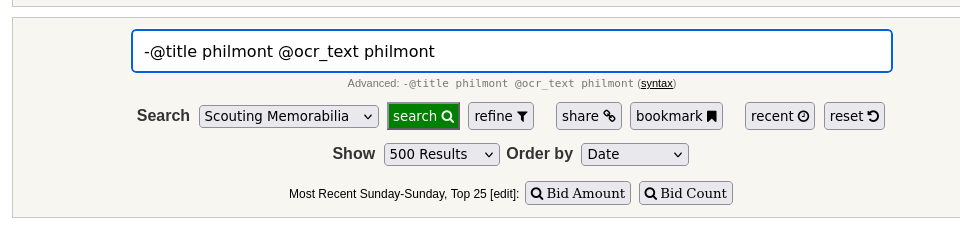
Enter -@title philmont @ocr_text philmont to look for Philmont in image text while excluding matching titles. This is a discovery technique, not a guarantee that the item is a bargain.
The last example is printed directly below BSPi's Search box. It can help uncover a potential hidden gem: an item whose photographed lettering mentions Philmont even though the seller didn't use that word in the title. It is a discovery technique, not proof of a bargain.
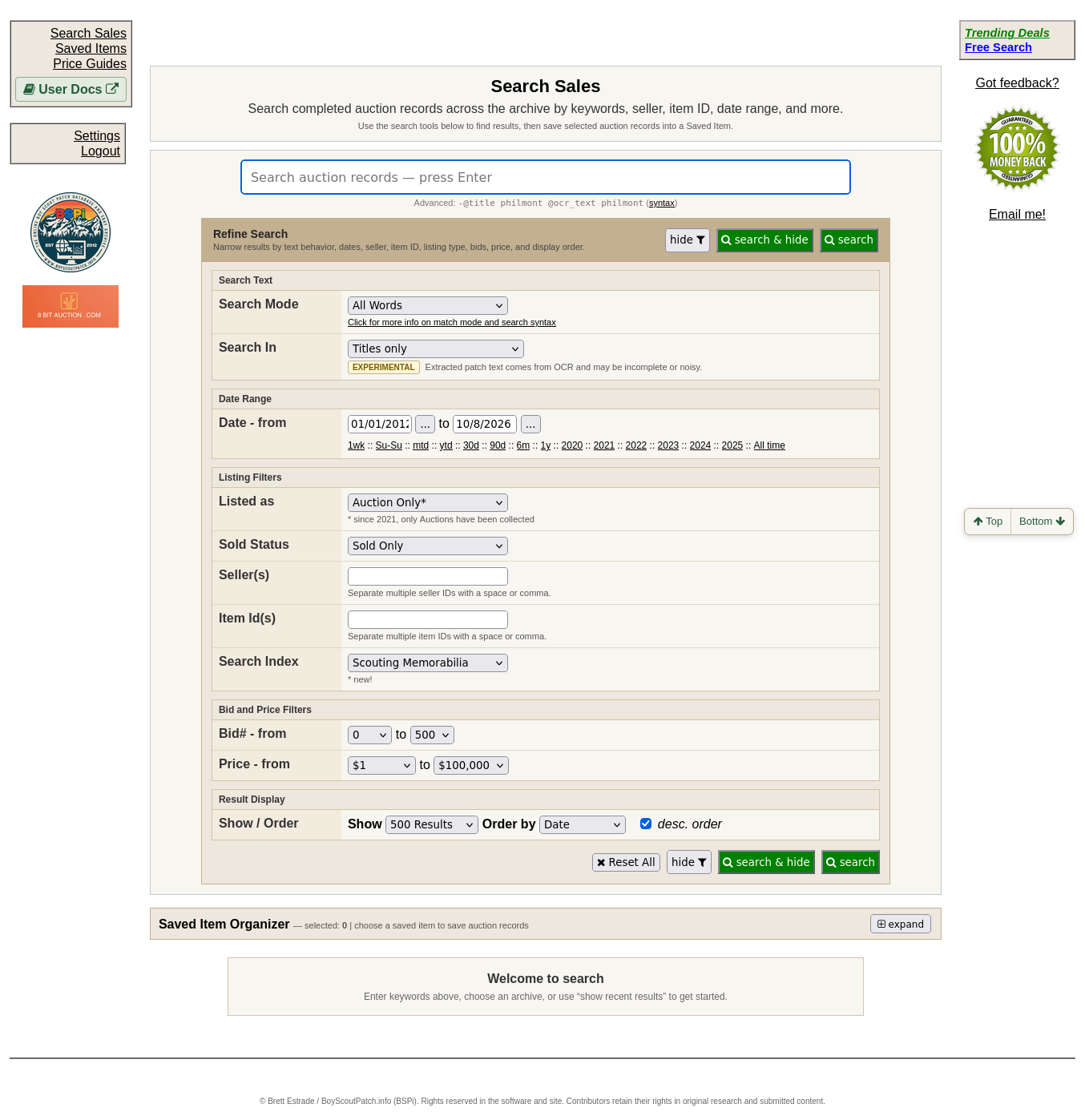
The Refine panel offers the same basic field scopes through Search In. Advanced field syntax entered in the main box takes precedence over the ordinary title/OCR scope selector, so these examples work without opening this panel.
3. A practical OCR search workflow
Start with a normal Philmont title search to understand what obvious listings look like. Next try @ocr_text philmont to find photographs with recognized lettering. Finally try -@title philmont @ocr_text philmont to focus on records where that word may be missing from the title. Open the expanded photographs and check the patch design, lettering, condition, and whether the listing is a mixed lot.
OCR is experimental. Its output can contain misread embroidery, partial text, and unrelated words from other objects in a photograph. Not every listing has OCR coverage, and matching image text does not establish a particular issue or value.
4. If you prefer menus instead
Open Refine → Search Text. Search Mode offers All Words, Any Words, and Boolean Expression. Search In offers Titles only, Extracted patch text only, and Titles + extracted patch text. Those choices are useful when you don't want to type field expressions yourself.
For further background, use BSPi's built-in Sphinx boolean syntax reference. Start with the examples above rather than attempting complicated expressions immediately.
Search results can change as new historical listings are added to the archive.