Tour of the Search Sales page
← Previous · Guide home · Topic index · Download PDF · Next →
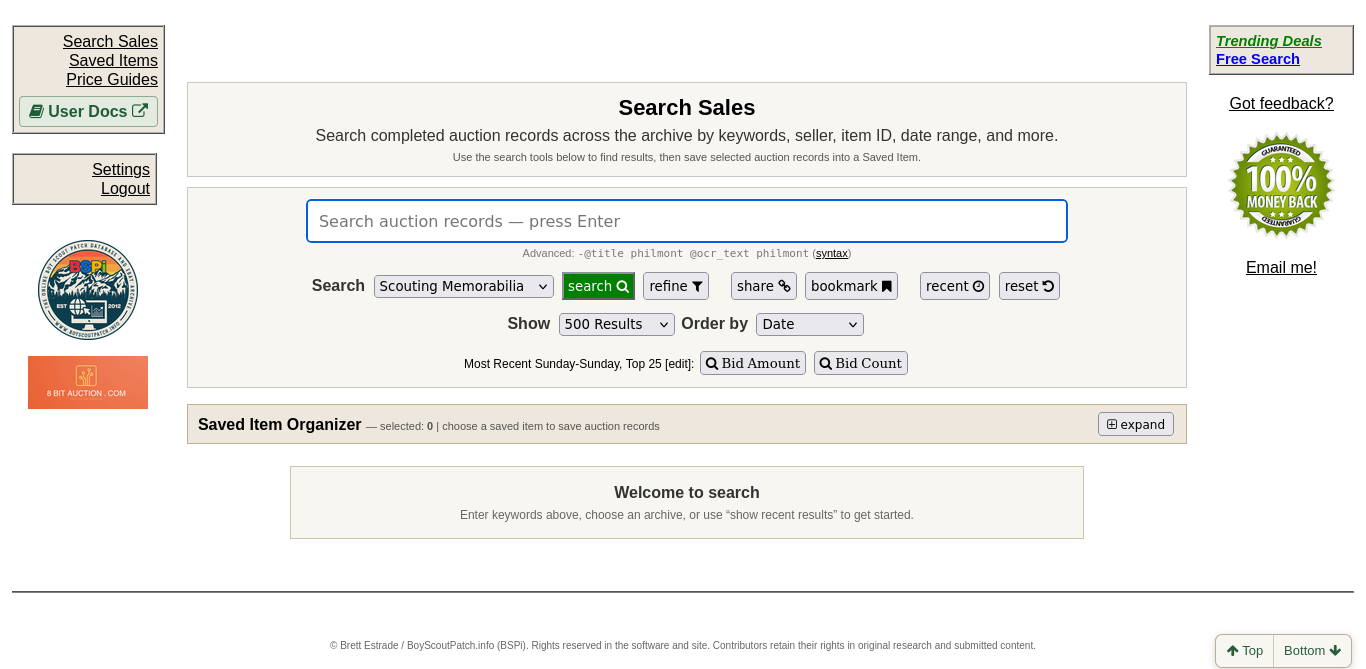
Search Sales begins with a keyword box and a few shortcuts. The screenshot below shows the initial member view.
Continue below for step-by-step instructions and examples ↓
After signing in, BSPi opens Search Sales at /search. The page describes its purpose as searching completed auction records across the archive.
What you will see
- Search: enter keywords or other identifying clues; the input says to press Enter.
- Refine: opens controls for search mode, title/OCR scope, dates, sellers, item IDs, listing type, sale status, bids, price and result display.
- Share and Bookmark: shortcuts for returning to or sharing searches. Bookmarking a search is different from saving an auction record.
- Recent: a control to show recent results; the welcome message suggests this as a starting point.
- Reset: starts over with the search controls; review your current query and filters after using it.
- Show and Order by: result-display controls; available ordering includes Bid Amount and Bid Count.
- Saved Item Organizer: displays the number of selected records and provides a place to choose a saved item. Choose a saved item before saving selected records.
The navigation bar includes Search Sales, Saved Items, Price Guides, Settings, and Logout. A visible link labeled syntax leads to external SphinxSearch Boolean-search documentation. The page also offers Trending Deals, Free Search, and a feedback email link.
For your first search
Begin with one identifying word or number from a patch. If results are too broad, try Refine rather than entering many unrelated terms at once. Compare actual historical records carefully; a title match alone is not proof of the same issue or condition.
What a completed search looks like
A verified keyword search for Philmont displayed a Scouting Memorabilia results table with ended date, sold status and amount, bids, title, seller, and listing type. The result view reported 500 items. It also exposed selection controls and an expanded Saved Item Organizer; those account-changing actions were not used.
The page warns that the final price and bid count for recently ended items can take up to seven days to settle. Its results may mix very different kinds of memorabilia when they share a keyword. For valuations, compare the same item or issue, not every result containing a familiar name.
Returning to a previous search
BSPi uses browser local storage to retain search-related state, so returning to the Search page may show earlier results rather than a completely fresh starting view. This can be convenient when resuming research, but check the displayed query, filters, and result dates before interpreting the page as a new search.
To begin a different investigation, enter new search terms and run the search deliberately. Use Reset when you want to start over with the search controls.
Restored browser search state is not the same as Saved Items. Saved Items are a separate feature for intentionally organizing selected historical records. Browser storage can also be affected by changing browsers, private browsing, or clearing site data.
How long previous results remain available
BSPi retains the last search's results in browser local storage for up to 24 hours. When restored, the page displays “Showing your last search results from this browser” with refresh and clear links. Use refresh when you want updated results rather than the stored snapshot; use clear when you want to discard the restored result view.
This is separate from the preferences saved for archive selection, results per page, sort order, and descending order. It is also separate from intentionally saved auction records in Saved Items. Browser storage is local to the browser profile, so it may not follow you to another device or private browsing session.
Search page before a query
The landing page provides a compact Search field and toolbar. Use Refine when you need the advanced controls, or Recent if you want to browse recently completed sales instead of entering a keyword.