Navigating search results
← Previous · Guide home · Topic index · Download PDF · Next →
The results page contains shortcuts for inspecting and moving among records. The numbered screenshot identifies the most useful starting controls.
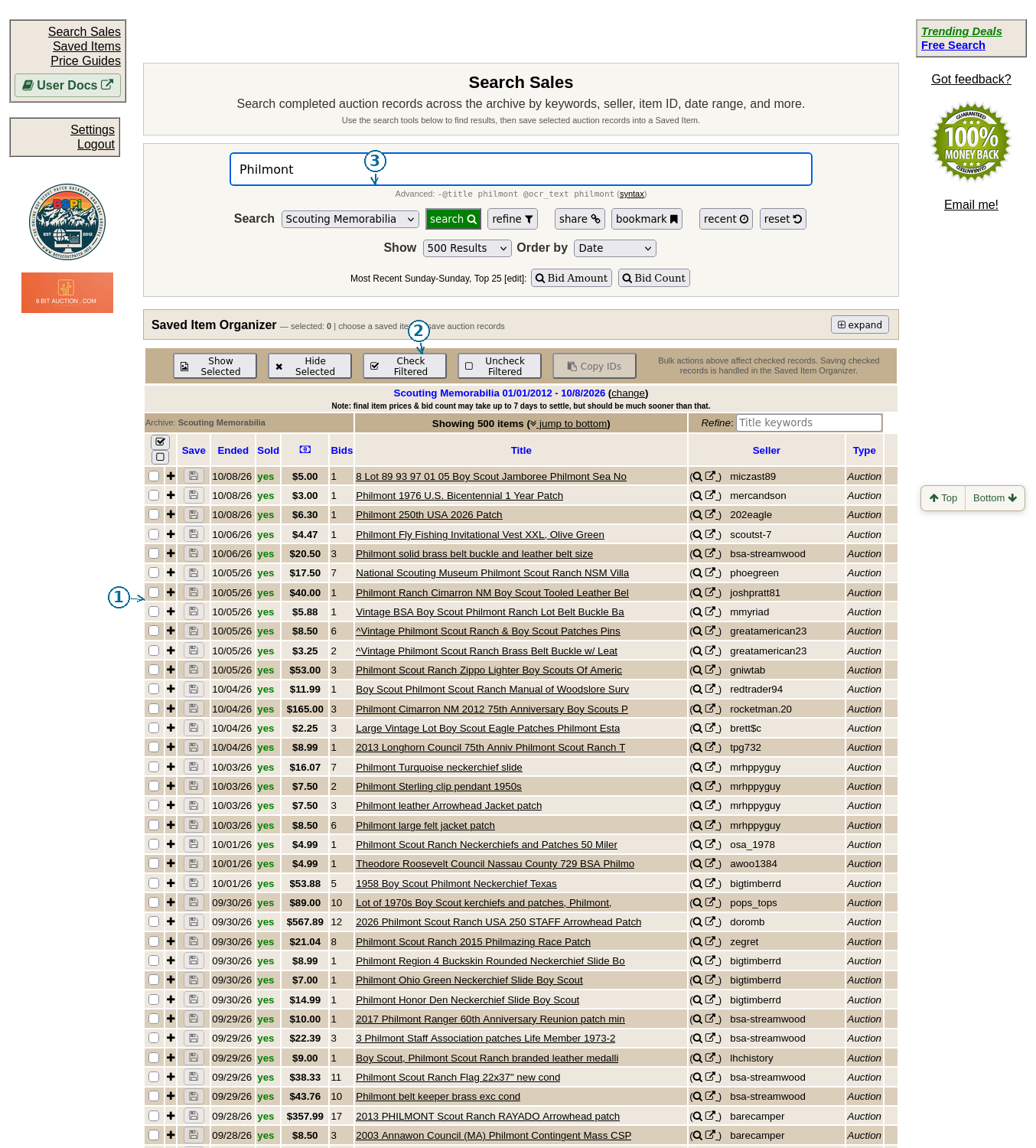
Numbered controls in the screenshot: 1 is the + button to expand a listing; 2 is the displayed result count and jump-to-bottom link; 3 is the Search button used to submit a query. The circles are placed in the margin, with arrows pointing to the actual controls.
Continue below for step-by-step instructions and examples ↓
Once a search completes, the Search Sales page displays historical auction records in a table. In a verified Scouting search, the visible columns included Save, Ended, Sold, Bids, Title, Seller, and Type. Results can include individual patches, other memorabilia, and multi-item lots, even when they share the same search term.
Reading the results
Start with the Title to identify possible matches, then check Ended, Sold, and Bids for historical context. Seller and Type provide additional context. Do not treat a title match as proof that the item is the same issue or condition as yours.
The interface provides TOP and BOT navigation links, and a jump to bottom link appears in the results heading. Use these to move through a long results page and return to the search controls without extensive scrolling. Check your query and filters when you return to the top, especially if BSPi has restored a previous search from browser storage.
Previewing and opening records
Use the + control to expand a row and inspect its photographs. Selecting the title opens the individual item record in a separate tab. See Image previewer and Individual item records.
Need assistance?
If a result, preview, navigation control, or image does not work as expected, see Getting help. Include the page or item URL and steps to reproduce the problem.
Opening a historical record in another tab
In the results table, the item title is a link to a BSPi item-details URL, such as /item/details/<item-id>. These title links are configured with a separate browser-tab target. Select a title to inspect its individual record, then return to the original Search tab to continue comparing results. Whether a browser actually opens a new tab can depend on its settings.
TOP and BOT navigate within the same long Search results page rather than issuing a new search.
Search by seller from the results table
The small magnifying-glass button beside a seller runs a seller-filtered search. The adjacent external-link icon instead opens the seller-related eBay link. See Finding a seller or item ID for the distinction and instructions for searching by exact item ID.
Expanding a row also selects it
Use the + icon in a compact result row to expand the image preview and additional details. The current interface also checks that record when it is expanded; collapsing it with × unchecks it. The Saved Item Organizer may therefore show a selected count even if you only opened a preview. Selected does not mean permanently saved. See Using the image previewer.