Make the most of BSPi Search
← Previous · Guide home · Topic index · Download PDF · Next →
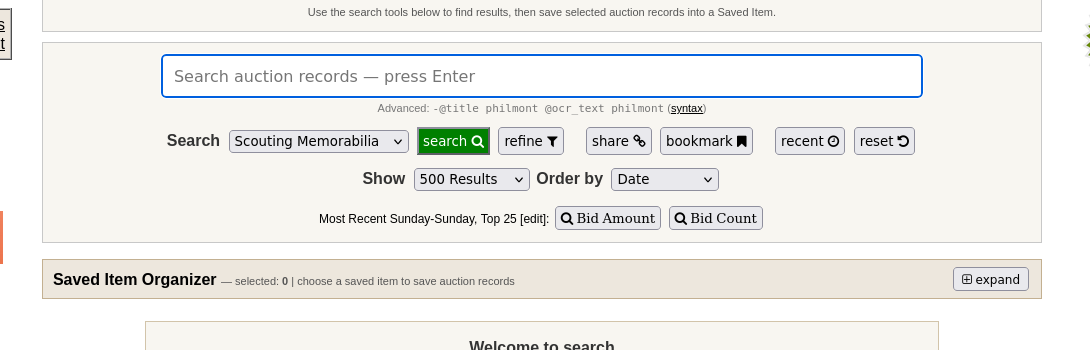
Several time-saving controls are available without opening a separate research tool. The toolbar below shows where they appear.
Continue below for step-by-step instructions and examples ↓
BSPi includes several shortcuts that help collectors work efficiently without learning complex search expressions. This tour is especially useful if you are deciding whether full membership fits your needs.
Choose how many results to show
The Show menu offers 10, 25, 50, 100, 250, 500, 1,000, 2,500, or 5,000 results. Start with 25 or 50 on a smaller screen. Use larger sets when systematically comparing many records, but expect longer pages and more scrolling. The number selected limits the result view; it is not the total number of items in BSPi's archive.
Choose an order that answers your question
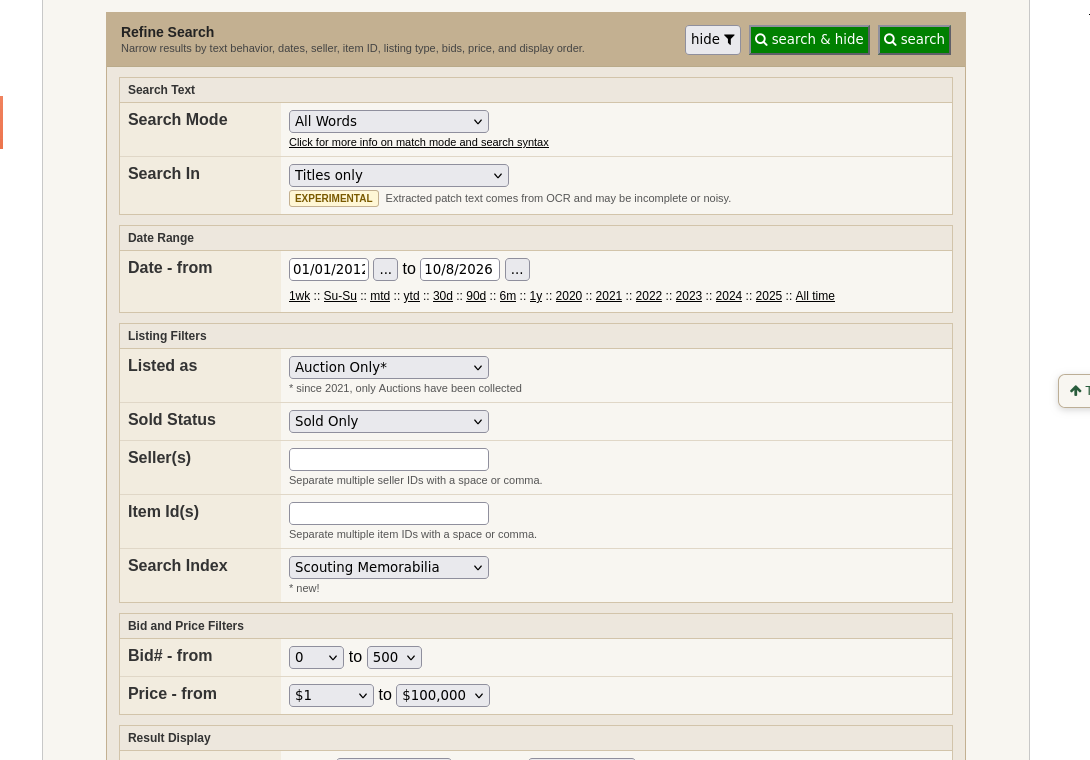
The Order by menu offers Date, Bid Amount, Bids Count, and Best Match. The expanded Refine panel also provides a descending order checkbox.
- Date: examine the most recent activity or work through an older period.
- Bid Amount: find higher or lower recorded prices within your selected search.
- Bids Count: inspect bidding activity, not necessarily item rarity or value.
- Best Match: prioritize search relevance rather than price or date.
These settings apply to the search results you request. Don't mistake the top result after sorting by price for the typical value of an item.
The Sunday-to-Sunday Top 25 shortcuts
The compact toolbar provides Most Recent Sunday-Sunday, Top 25 buttons for Bid Amount and Bid Count. Each sets the date window to the recent Sunday-to-Sunday period, chooses the corresponding order, limits the result set to 25, and runs the search. The adjacent edit link opens the Refine panel so you can adjust the criteria.
These are useful ways to explore notable recent transactions and heavily contested auctions, but neither shortcut automatically identifies the most collectible or undervalued items.
Share and bookmark searches
- Share creates a link representing the current search and copies it to the clipboard (or offers a copy dialog when necessary).
- Bookmark prepares the current search URL and browser-page title for a normal browser bookmark. Use Ctrl+D on Windows/Linux or Cmd+D on Mac to save it.
- Recent runs a search for recent records without requiring keywords.
- Reset resets search criteria and runs a broad search; it is not the same as removing an item from a Saved Item.
A browser bookmark is not a Saved Item. The former helps you return to a search; the latter organizes selected historical auction records in BSPi.
Efficient review of multiple results
The result toolbar supports Show Selected, Hide Selected, Check Filtered, Uncheck Filtered, and Copy IDs. These actions work with the selected or filtered records in the current result view. They are separate from permanently saving records in the Saved Item Organizer.
Use the + control to expand a row and inspect its photographs. Remember that expanding also checks the row; collapsing unchecks it. This matters when preparing a selection for later use.
Find overlooked items with OCR
In Refine → Search Text → Search In, choose Extracted patch text only or Titles + extracted patch text to search words recognized in auction photographs. OCR can reveal candidates hidden by vague seller titles, particularly mixed lots. It is explicitly experimental, so treat the results as leads and inspect the images yourself.
For examples and limitations, see OCR image-text search, Refining Search, and Understanding historical prices.
Search tools help you examine historical sales; they do not guarantee future prices or results.