Refining a Search
← Previous · Guide home · Topic index · Download PDF · Next →
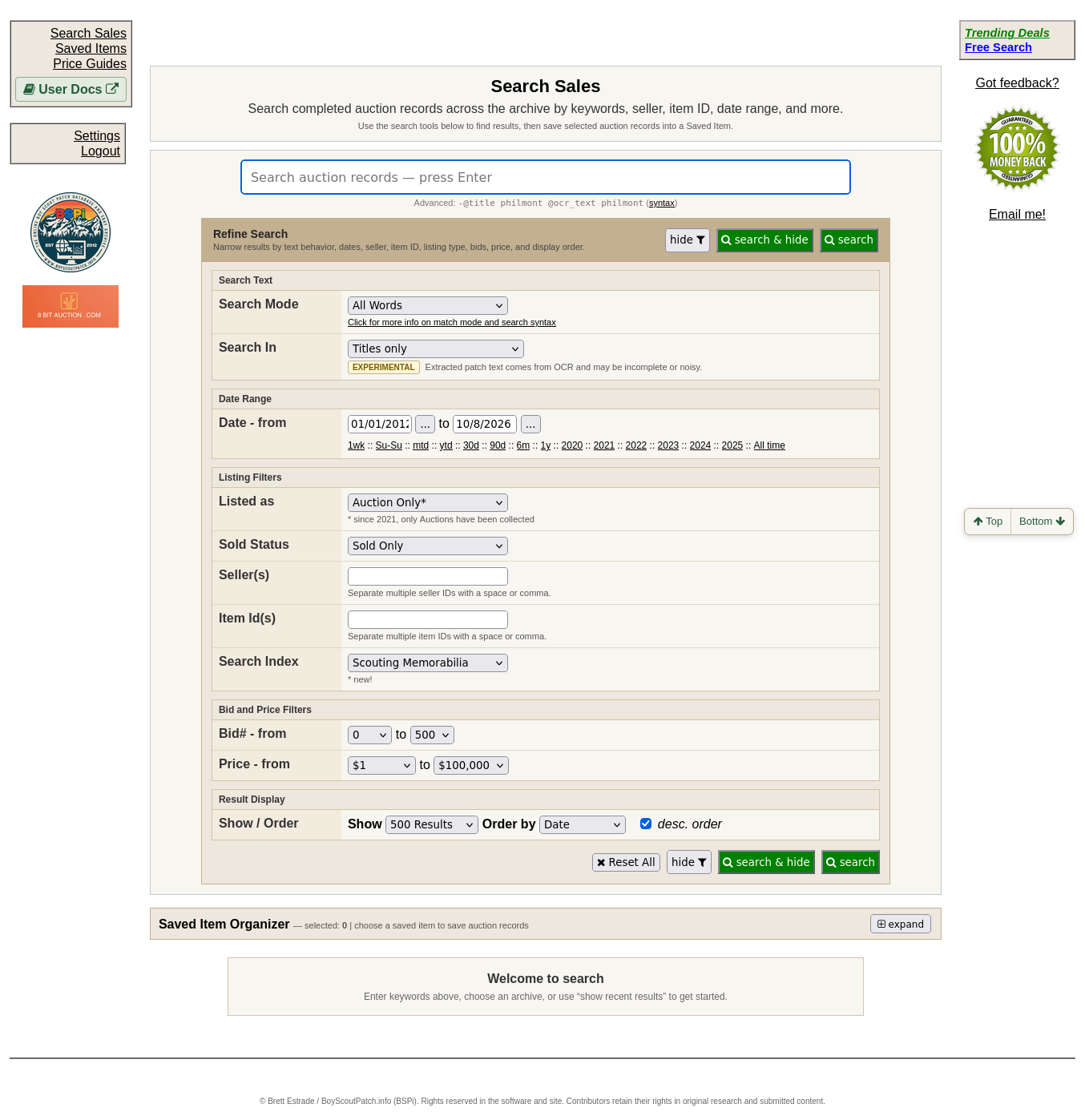
Open Refine when a simple keyword search returns too much. The following view shows the groups of filters available.
Continue below for step-by-step instructions and examples ↓
When a broad search returns too many unrelated items, use Refine on the Search Sales page. The panel is headed Refine Search and provides several groups of controls.
Search Text
Search Mode and Search In control how and where your terms are matched. The panel includes an information link about match modes and search syntax. One search scope concerns OCR-extracted patch text, explicitly marked EXPERIMENTAL because extracted words may be incomplete or noisy.
Date Range
Set Date - from and to, or choose a shortcut such as 1wk, mtd, ytd, 30d, 90d, 6m, 1y, a displayed calendar year, or All time.
Listing Filters
Choose Listed as and Sold Status, or narrow by Seller(s) and Item Id(s). The form says multiple seller IDs or item IDs may be separated by spaces or commas. The page notes that only auctions have been collected since 2021.
Bid and Price Filters
Use Bid# - from/to or Price - from/to to limit the range of records. These are historical listing attributes, not automatic estimates of what your own item is worth.
Result Display
The panel offers Show / Order and a descending-order choice. It also provides Reset All, hide, and search & hide controls.
Practical beginner advice
Start with one identifying word or number, inspect the result mix, and change one filter at a time. For a specific patch, use its visible wording, lodge number, event, or year to narrow the candidates. Be especially careful not to compare an individual patch with a mixed lot.
Exact Search Mode and Search In options
The Search Mode choices include All Words, Any Words, and Boolean Expression as Search Mode choices. The Search In choices are Titles only, Extracted patch text only, and Titles + extracted patch text. The latter two use experimental OCR evidence; an OCR text match does not establish that the photographed item is the same issue as yours.
For direct shortcuts, see Finding a seller or specific item ID.