Examine Saved Item sales data
← Previous · Guide home · Topic index · Download PDF · Next →
Once you've saved auction records into a Saved Item, its manage sales data link opens the Sales Data Manager. Here you examine the historical evidence behind a price comparison.
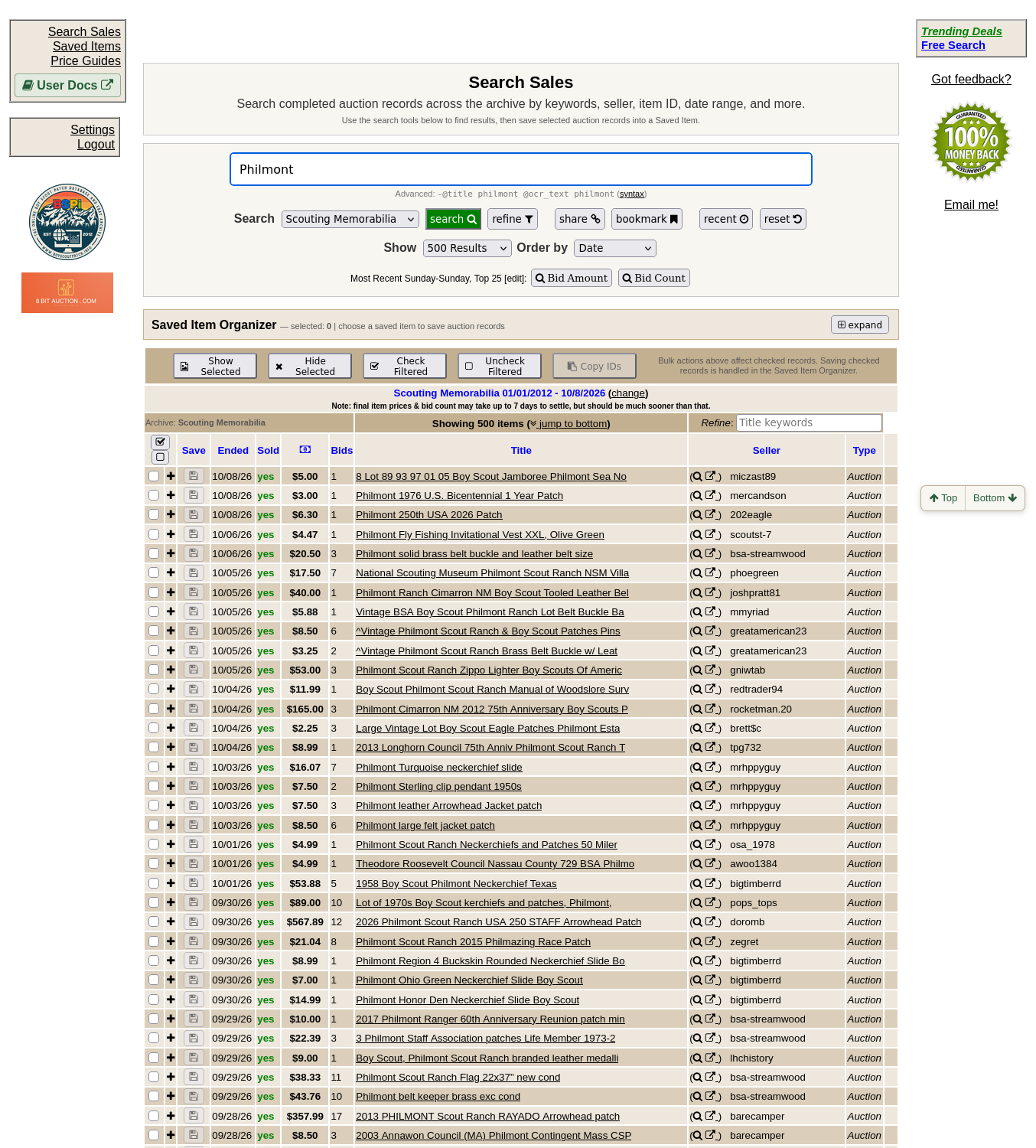
Archived sales originate in Search Sales. Save the relevant records into a Saved Item before opening its data manager.
Review the sales table
Open Saved Items, find the item, and choose manage sales data. The table lists the end date, sold status, displayed price, bid count where applicable, title, listing type, seller, and eBay item ID. Expand a row or choose show image to inspect photographs; choose open details for the individual archived record.
Sold matters: the displayed price on a listing that did not sell is not a realized sale. A listing with unknown status is not a confirmed sale either.
Select and export records
Check one or more rows before using actions that apply to a subset. check all and uncheck all manage the selection. show images and hide images help compare photographs. annotate selected begins image-by-image review of checked records, while annotate all covers the entire Saved Item.
Choose export selected to save a CSV of checked records, or export all for the entire Saved Item. remove selected removes records from this Saved Item, not from the historical marketplace archive; check the selection carefully before confirming.
The analyze button opens the available charts when the Saved Item contains records. Continue with Market Analysis.
Keep comparisons meaningful
Confirm each issue from photographs as well as titles. A mixed lot, an unsold asking price, and a completed single-item sale are different kinds of evidence. Separate or clearly label records that do not describe comparable objects.
Return to Creating Saved Items or Price Guides when your research group is ready.