Explore BSPi in eight real screenshots. Select a thumbnail to jump to a feature, use Previous/Next, or open the large image at full resolution. The tour below is the primary visual preview for prospective members.
See what BSPi membership looks like
Considering a subscription? This visual tour uses real BSPi screenshots, not mock-ups. Browse using the thumbnail strip, Previous/Next, or the left and right arrow keys. The large image and caption change together. Select the large image to view the original screenshot at full resolution.
Inside a BSPi membership8 real screenshots · select a thumbnail to jump to a feature
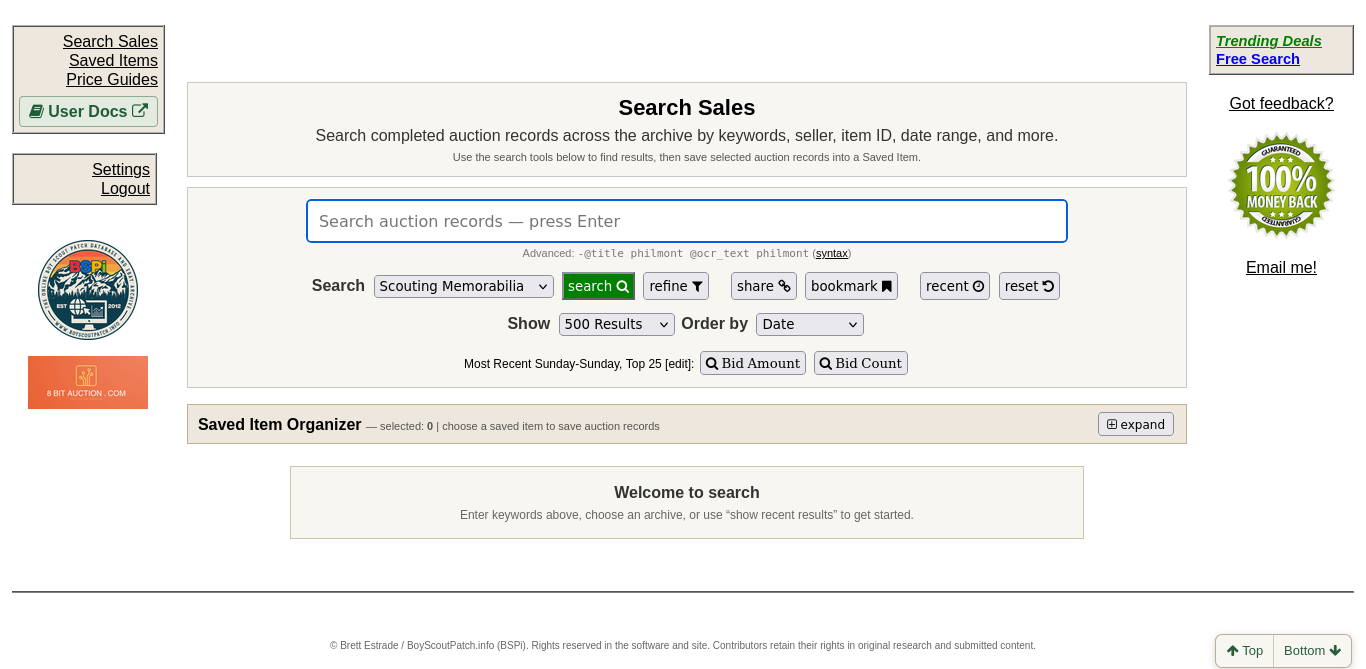
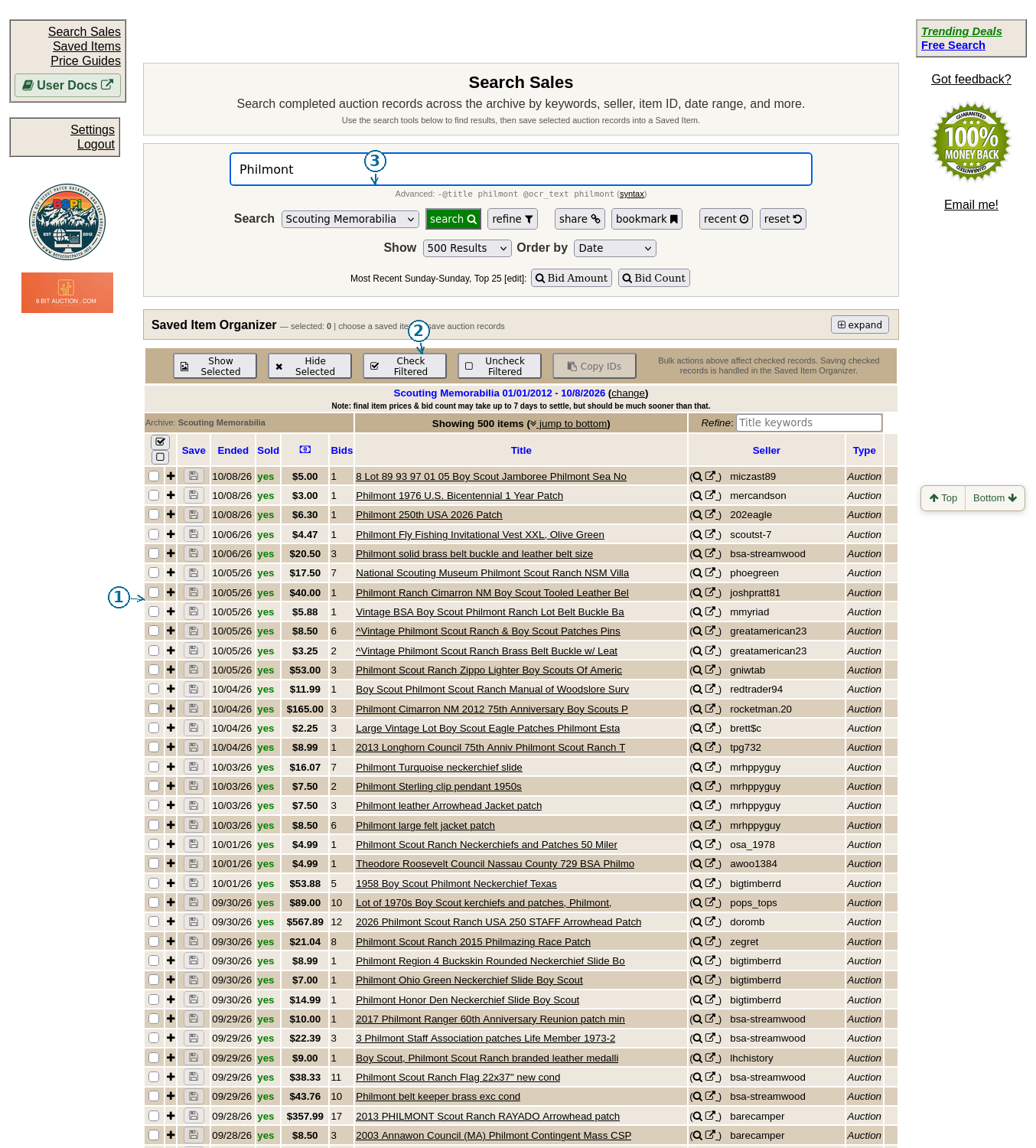
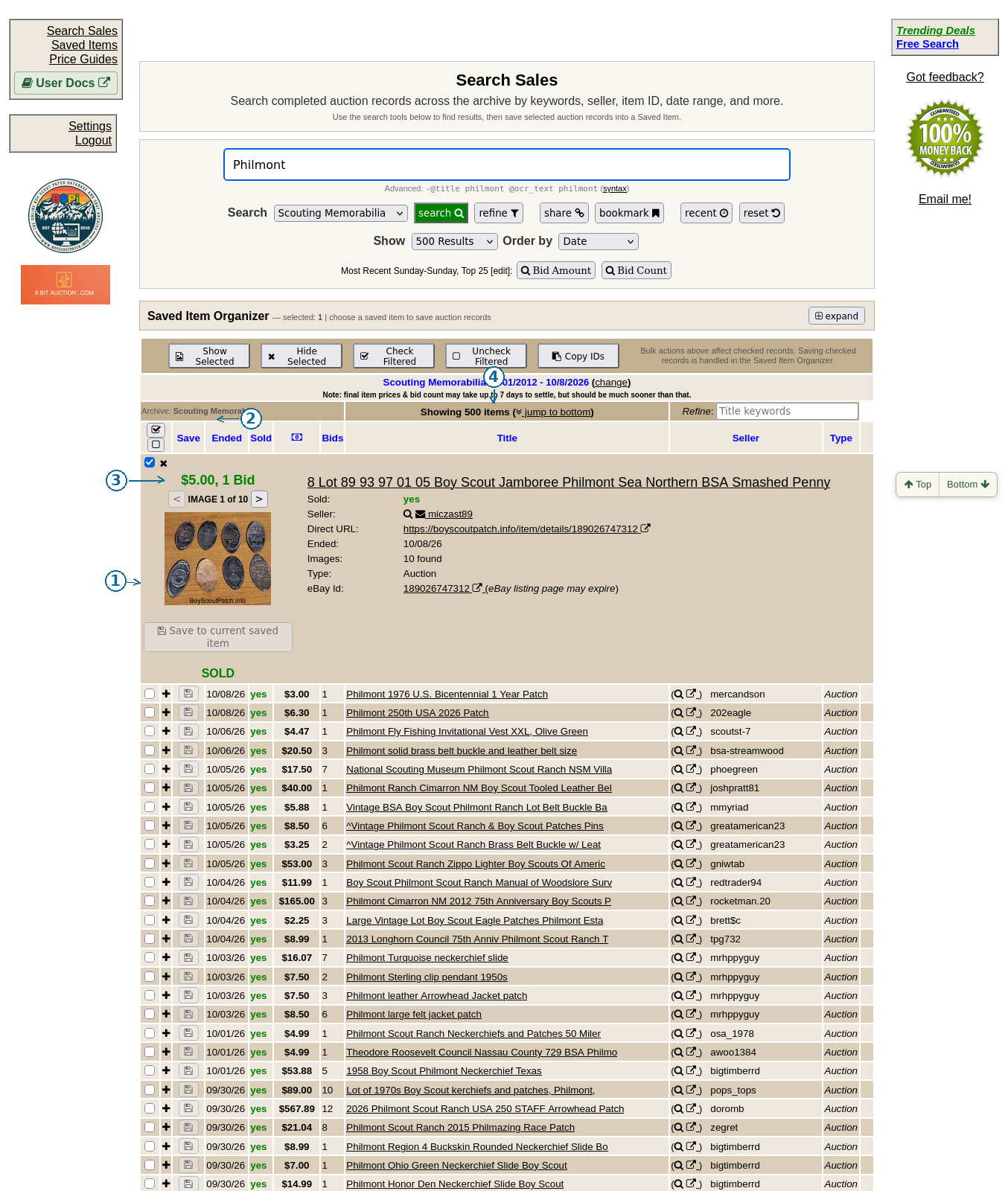
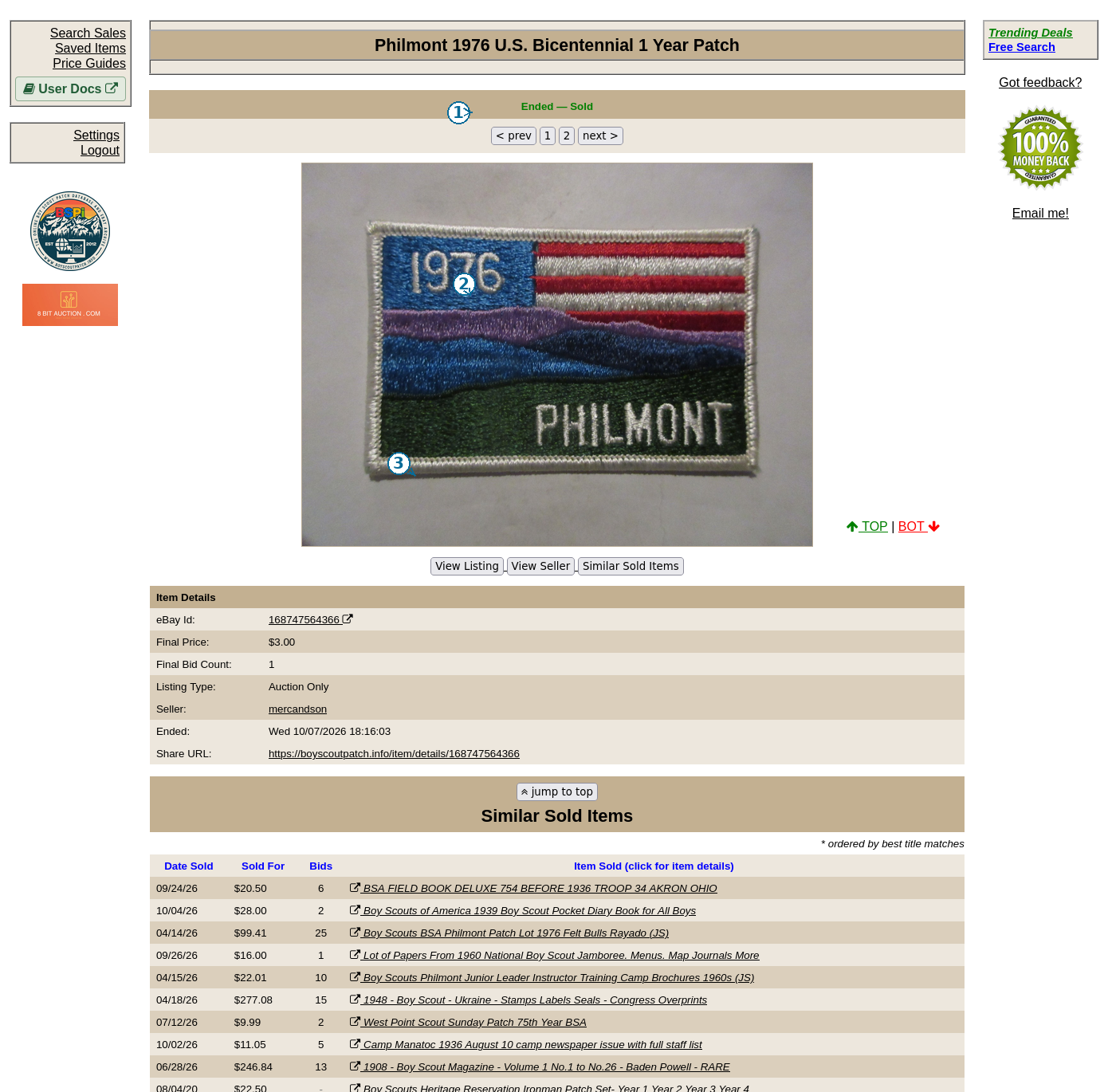
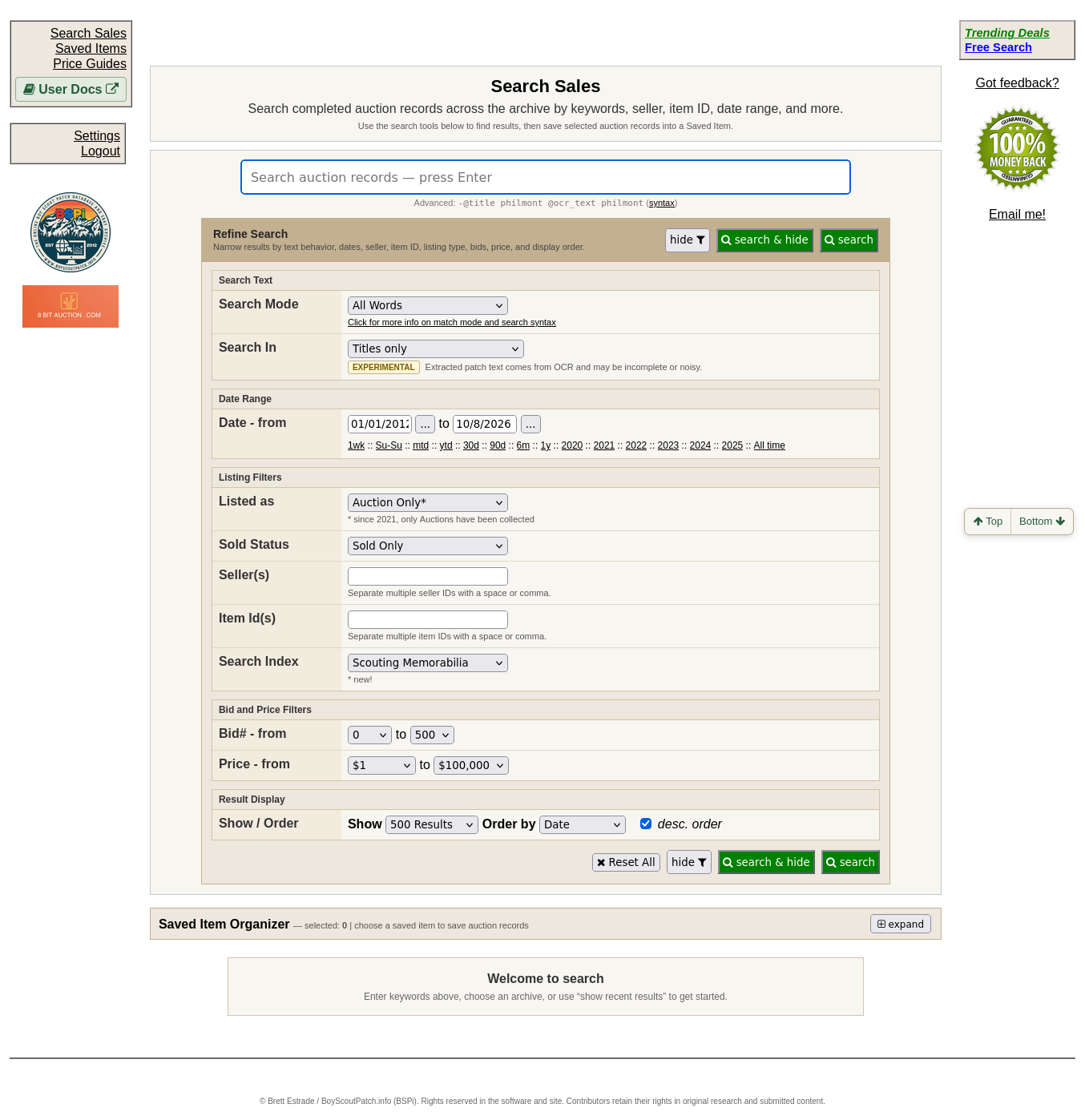
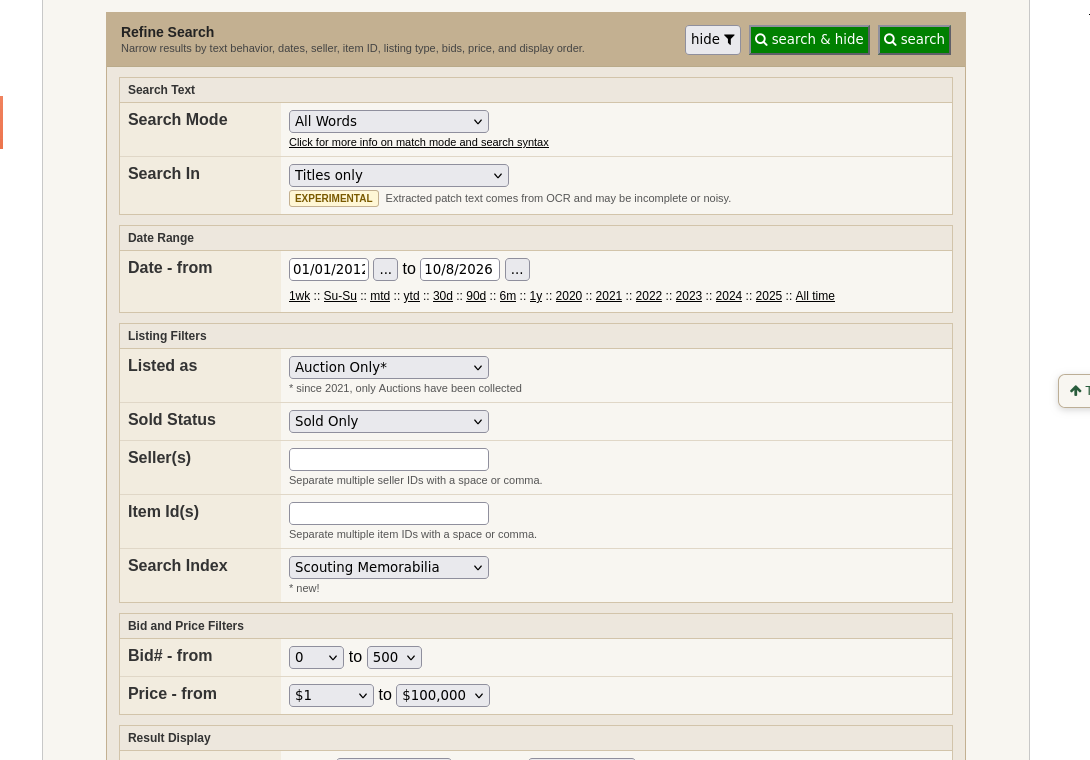
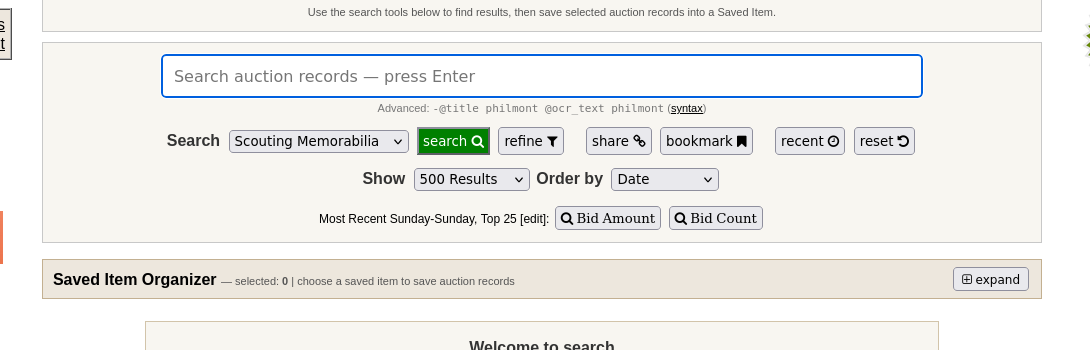
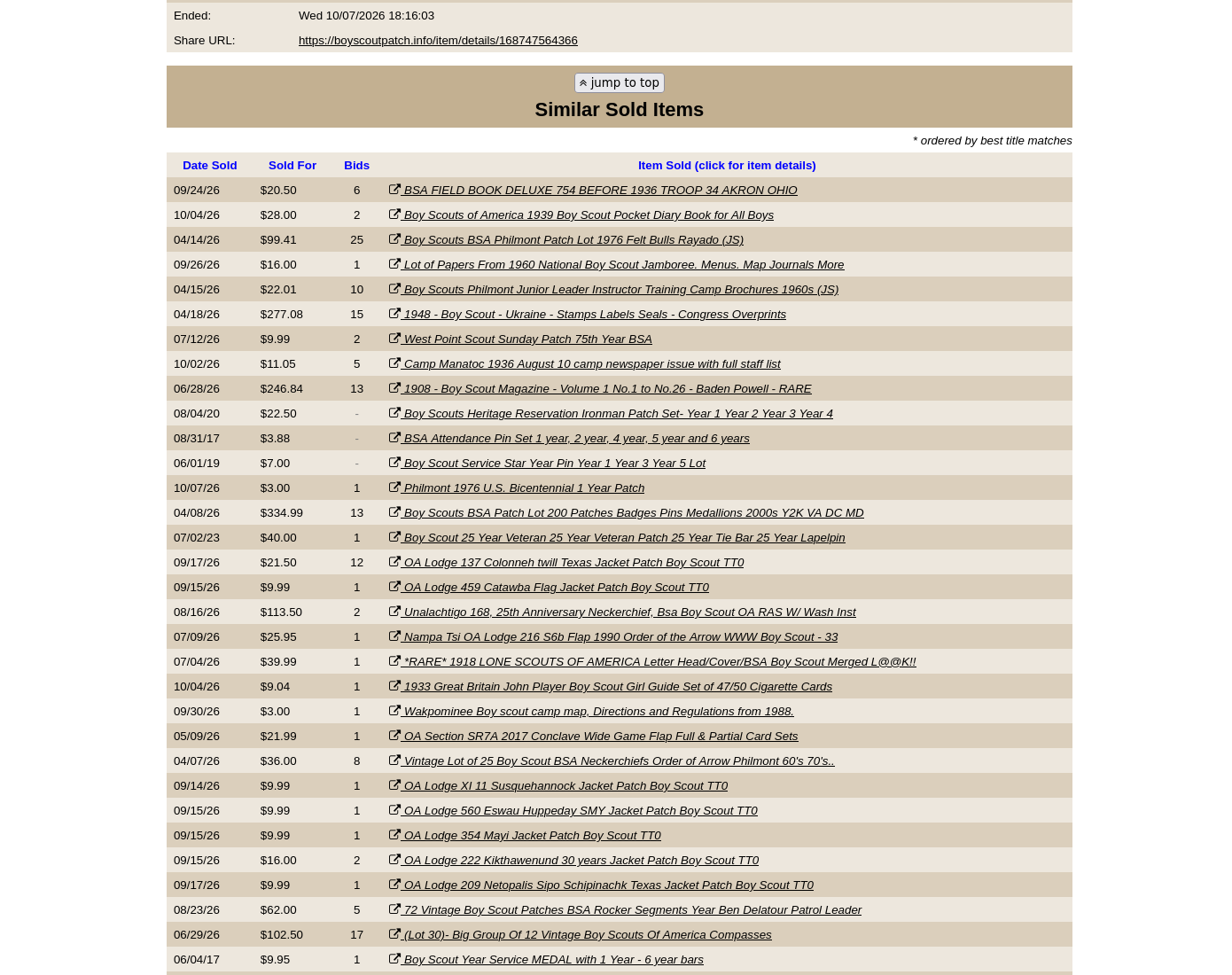
1. Start with Search SalesMembers begin with a simple keyword field. Search for a camp, lodge, event, or wording from a patch. The navigation also provides access to Saved Items, Price Guides, and Settings. Learn about the Search page.2. See actual historical salesResults include sale dates, recorded prices, bid counts, titles, and sellers. A broad word such as Philmont can return several kinds of memorabilia, so compare only items that genuinely match yours. Learn to navigate results.3. Inspect photographs before comparing pricesExpand a result with the plus sign to see an image and more listing information. Expanding also checks the row for selection; it does not permanently save the record. Learn about image previews.4. Open the individual item recordAn item page provides more evidence, including photographs, sale status, seller, ending date, and the recorded final price. Use it to check whether a sale really resembles your collectible. Explore an item record.5. Narrow a large searchRefine lets you choose search modes, dates, sellers, item IDs, listing types, sold status, and bid or price ranges. You can make a broad search more relevant without knowing special query syntax. Learn the filters.6. Find overlooked items using image textBSPi can search text recognized in auction photographs, potentially finding a patch whose title is vague. OCR is experimental: always verify a promising result by looking at the image. Understand OCR search.7. Work efficientlyAdjust the number of results, sorting, and quick views of recent activity. Share or bookmark useful searches so you can return to them. See Search efficiencies.8. Use suggested sales as leadsSimilar Sold Items can suggest other records to inspect, but these are not verified appraisals. Even within Scouting, suggested items may differ in type or issue. Check each candidate before comparing prices. Learn how to interpret prices.
Screenshot 1 of 8
What this tour does—and does not—show
These are screenshots of the member interface, provided so you can judge what to expect before subscribing. This is not an interactive trial, and it does not demonstrate every feature or guarantee any particular item's value. The item-details and Similar Sold Items screenshots were refreshed after the Scouting search-index fix. Other screenshots may predate cosmetic navigation changes; the linked instructions describe the workflows.
BSPi aims to accommodate mobile devices, but extensive comparisons, wide result tables, and detailed photographs are best explored on a desktop or laptop with a reasonably large screen.