Using the image previewer
← Previous · Guide home · Topic index · Download PDF · Next →
Expanding a result reveals the image preview and related controls. Follow the numbered arrows to understand what each click does.
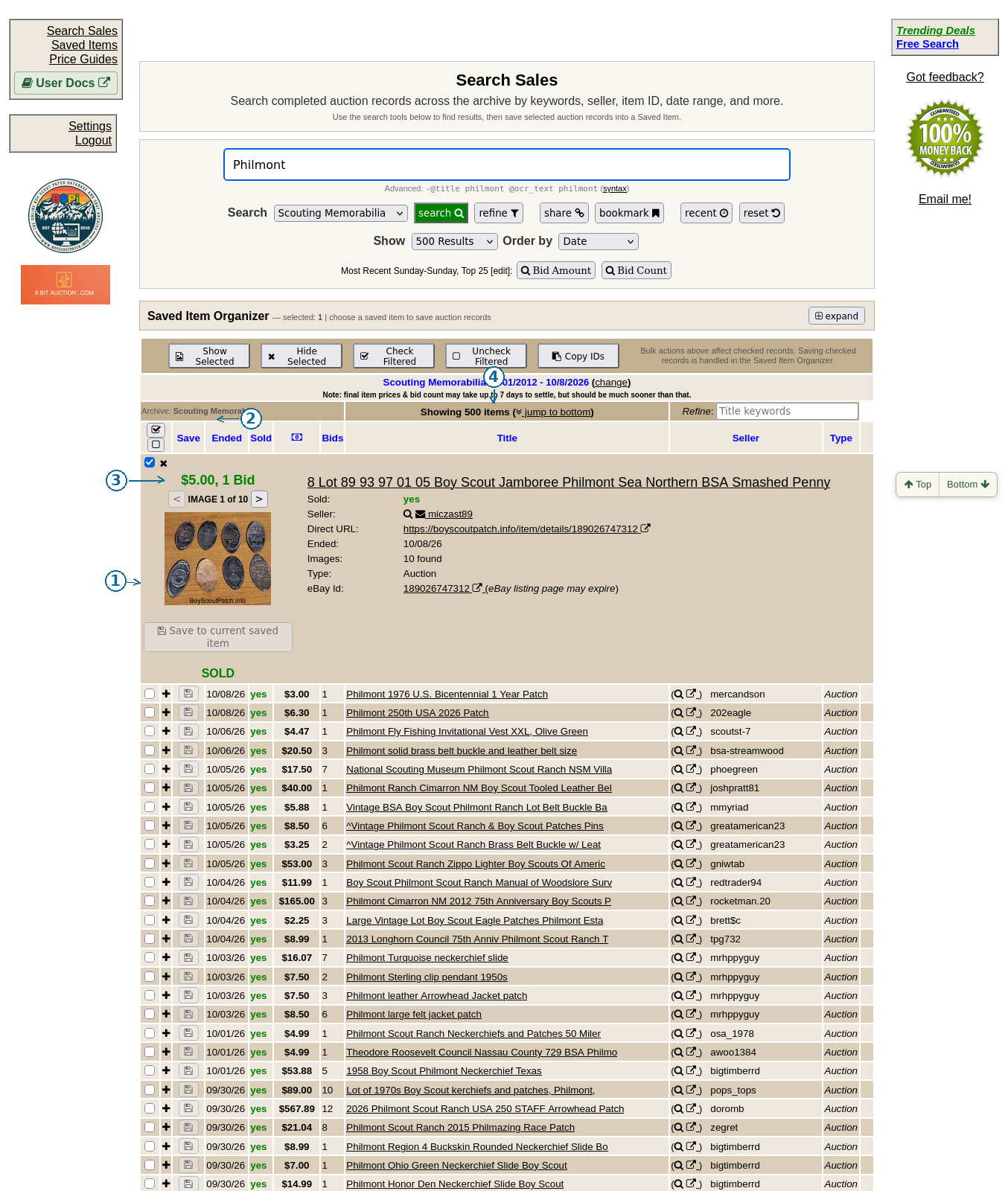
Follow the numbered arrows: 1 points to the + control on a collapsed result (use it to expand another listing); 2 points to > beside IMAGE 1 of 10 (next photograph); 3 points to the actual thumbnail (select it to open the item page); 4 points to the expanded listing title (another way to open its record). These are real click targets, not decorative markers.
Continue below for step-by-step instructions and examples ↓
Photographs can be essential when distinguishing Scout patch issues, embroidery variations, condition, and mixed lots. The Search results interface provides an expanded thumbnail, photograph navigation and item details.
What to look for
When viewing a result, first verify that the photograph corresponds to the item title. If the listing contains several objects, identify which object you are researching rather than treating the entire lot price as the price of one patch.
The expanded preview and its basic controls have now been inspected in the authenticated browser. Do not assume every record has the same number or quality of images.
For an expanded examination, see Individual item records. If a photograph is missing, fails to load, or behaves unexpectedly, report the problem with the item URL, browser, operating system, and reproduction steps.
Expanding a result and browsing its photographs
Results have a compact row and an expanded thumbnail row. Open the row's expansion control to see a larger preview and additional details. Within that row:
- IMAGE 1 of N shows the current image and total available images once the image list has been checked.
- The < and > buttons move backward and forward through the available images. They are disabled at the beginning or end of the sequence.
- Selecting the preview image opens the corresponding BSPi item-details page in a separate browser tab/window, depending on browser behavior.
- The expanded row also shows price and bid information, seller, ended date, image count, listing type, and a direct item URL; other fields depend on the record.
- A Save to current saved item button is available when an appropriate Saved Item has been chosen. Do not confuse this with merely opening the preview.
Image counts may initially say checking... while the browser obtains the list of available photographs. If an image does not appear, allow it time to load before reporting a problem.
Expanded-row example
In an authenticated browser test, selecting the + control expanded the first Philmont result and displayed its photograph and additional sale details. Expanding a result also checks/selects that record in the current results view: the Saved Item Organizer count changed from 0 to 1. This is not the same as permanently saving the record to a Saved Item.
To collapse the result, use its close (×) control. Closing the expanded row also unchecks the item when the expanded row is closed. If you intend to use bulk selection, be mindful that expanding and collapsing rows affects the checked selection state.
Moving through photographs in an expanded result
The following two captures are from the same historical listing, not reconstructed illustrations. The first shows image 1 of 10; selecting the right-arrow control brings up image 2 of 10. The thumbnail content changes while the listing price, seller, and other details remain the same.
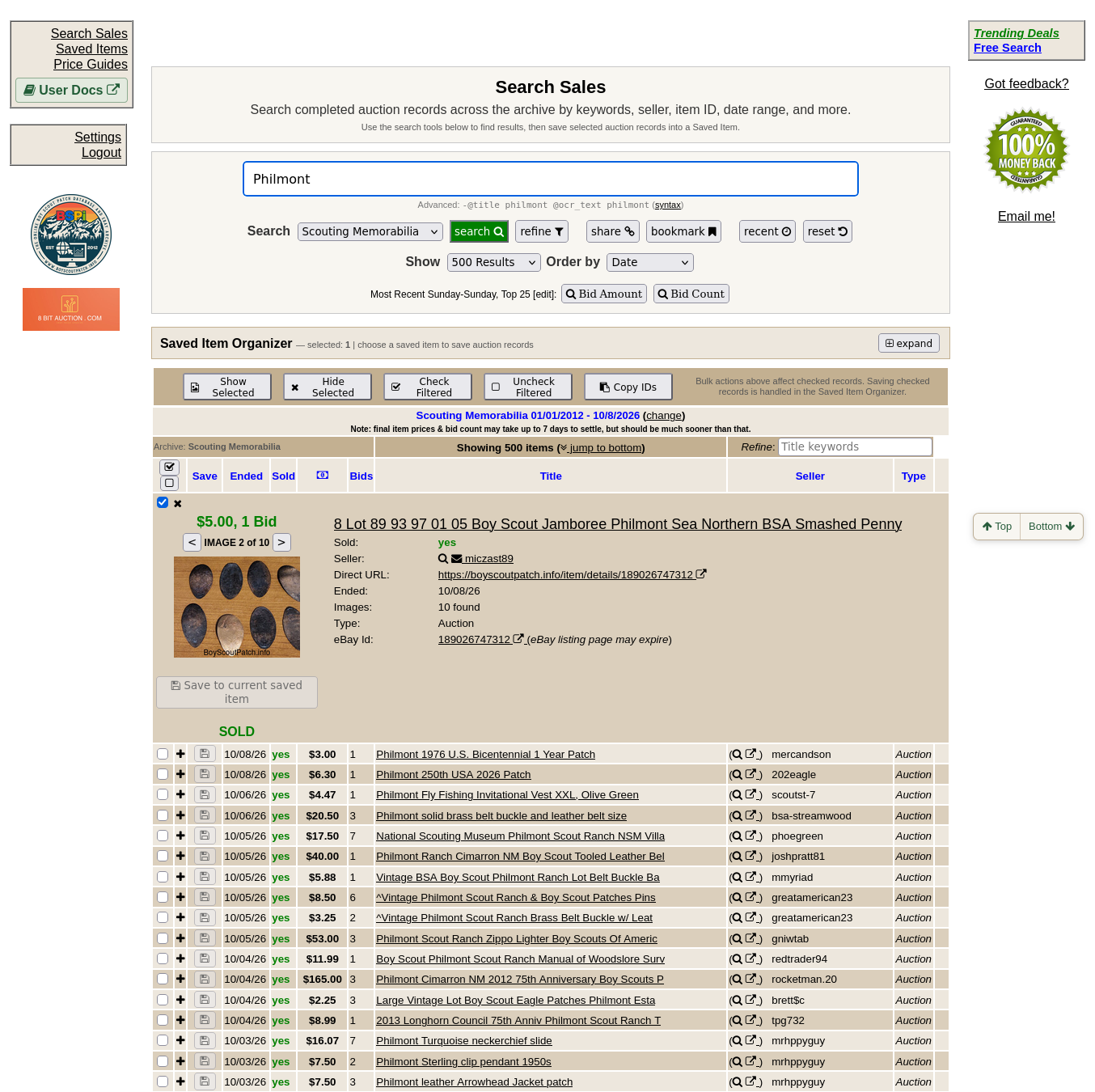
Choose > next to the image counter to advance one photograph. Choose < to return. The buttons become unavailable at the first and last photograph. Clicking the thumbnail opens the individual BSPi item page in a new browser tab.